
The Canon Camera Connect is a mobile app that allows you to remotely control your camera from your phone. In remote live view shooting mode, the LCD display on the camera shuts off, and a live view from the camera appears on your phone. It’s a nifty trick if you want to explore more in photography.
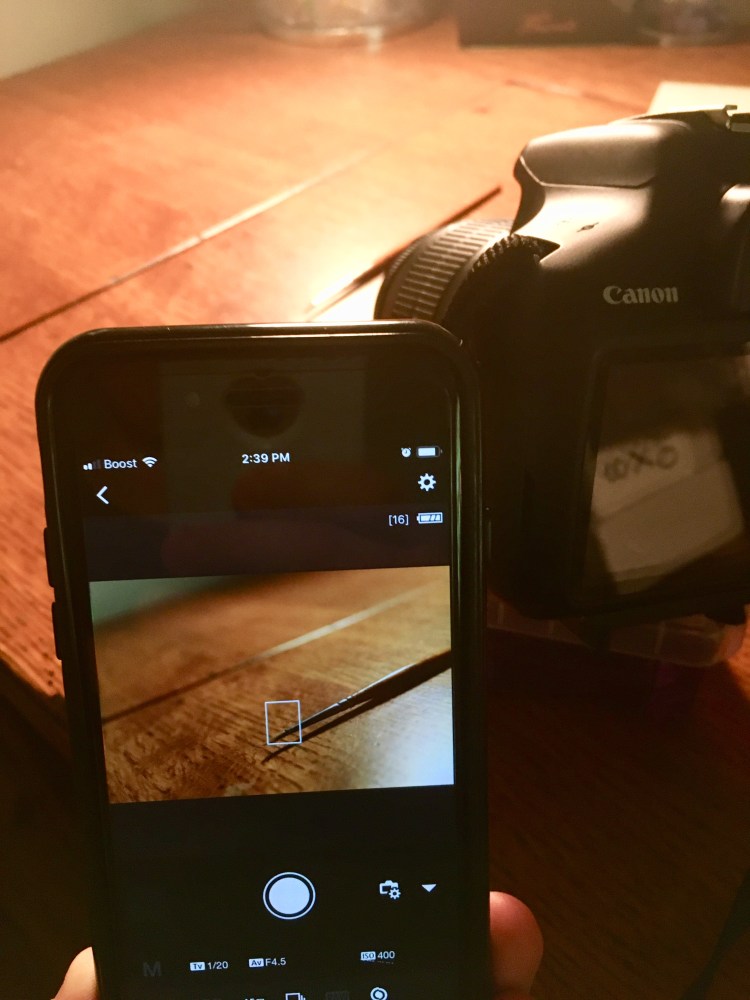

With the camera’s built-in Wi-Fi function, you are able to control the ISO, aperture, shutter speed, exposure compensation, focus, and shutter button all from your phone. Downloading pictures from your camera to your phone is also accessible. If shooting in RAW mode, the app will automatically compress the image into a .jpeg once downloaded to your Photo Library.

The remote live-shoot feature is especially convenient when your tripod is set up precariously and you don’t want to jostle the camera when pressing the shutter button. It can also be used to get close to an animal (like a bird) when you don’t want to disrupt its area for long. In my case, I was able to use it for an easy self-portrait session.


By selecting ‘Images on camera’, the other mode on the app, you can view thumbnails of stored photos on your camera. You can then set a photo as your favorite, save it to your phone, or even delete it on the app. Along the bottom, you can also see different organization properties for sorting or filtering through your photos.
After downloading the Canon Camera Connect App, click Menu on your camera. Go to your configuration settings tabs (the one with yellow wrenches on them) and find the Wi-Fi/NFC. If it is set at Disable, change it to Enable. Then, select Wi-Fi function and select the phone icon, ‘Connect to smartphone’. Choose the set. you want to connect to (directions for this can be found on the app with the ‘Easy Connection Guide’ button) and then your camera will connect to your smartphone.
Unfortunately, there are some shortcomings when it comes to the app. The remote video shooting and time lapses are not available on the app’s features yet. I also have not been able to figure out how to adjust to portrait mode on the app.
 Hannah Matt