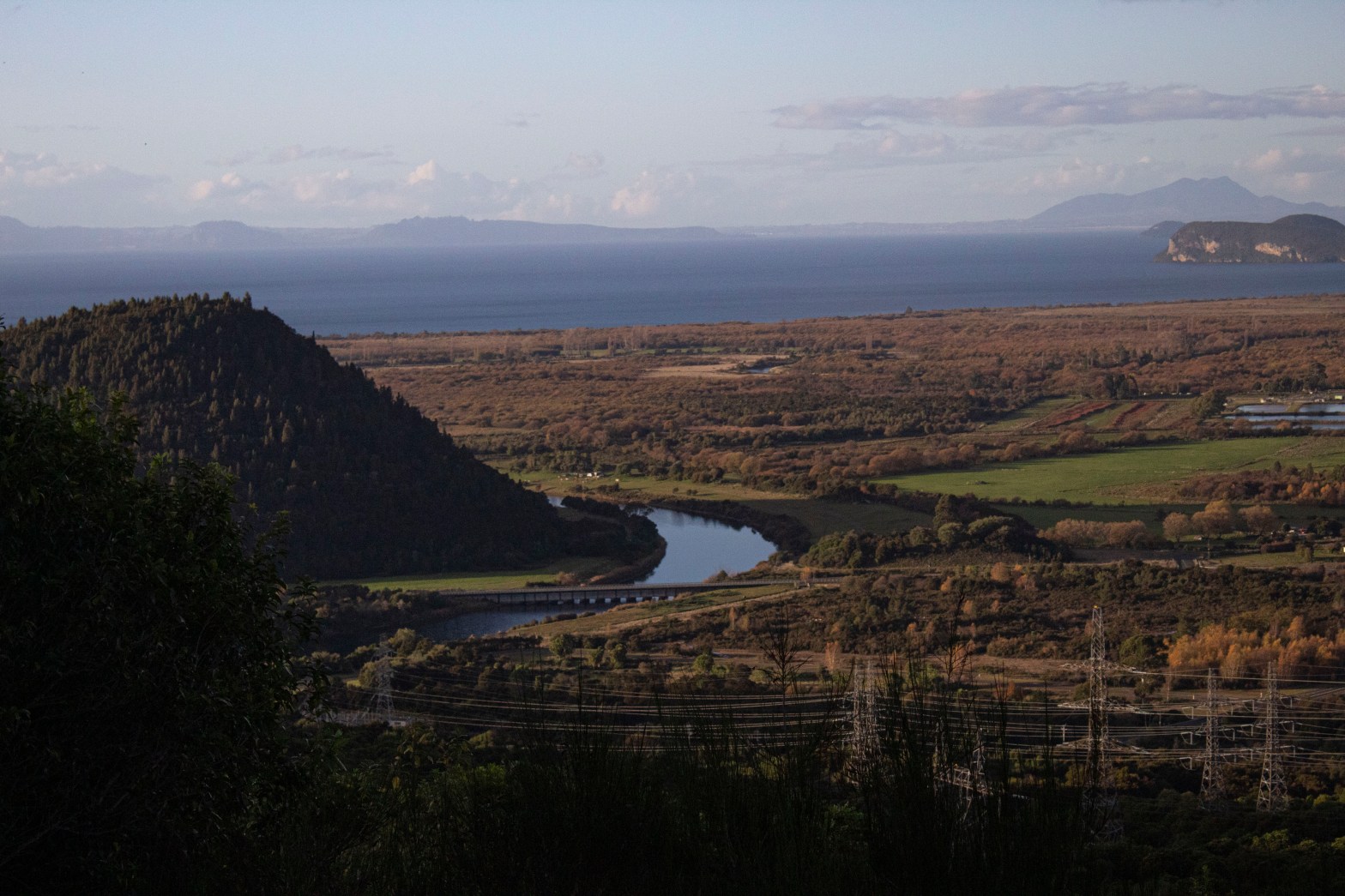
Have you ever wanted to get a whole landscape image but didn’t have a wide enough lens to capture it all?
Instead of struggling to get one image, take a photo series (about 3-6 images) one after another. Make sure to have some overlap to make it easier to piece together later, and also have a consistent exposure and white balance in each photo. This technique allows your pictures to be of much higher quality.

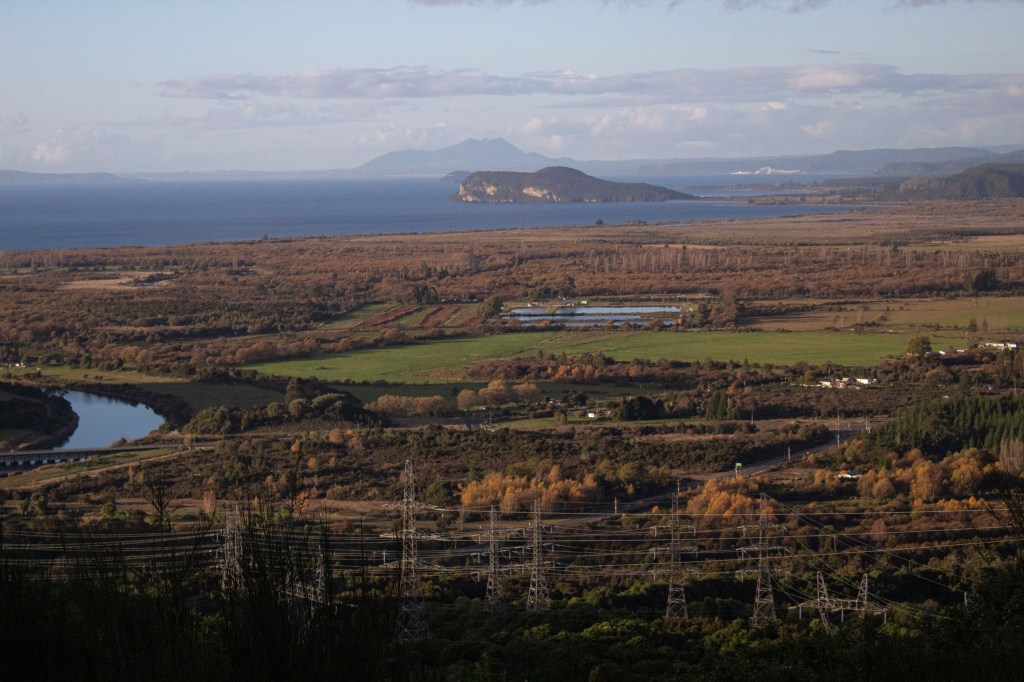

Creating your panorama:
- Open your photo series in Photoshop
- Go to File > Automate > Photomerge
- Next, a pop-up will appear for Layout and Source Files
- Layouts will determine how your images will be blended together
- Automatic- this setting automatically picks the best Layout to blend your images together
- Perspective- the center image is used as the focus point and neighboring images are bent outwards. This can create a bow-tie effect which gets rid of any curvature, but can sometimes look odd
- Cylindrical- using curvature, this will cancel out any bow-tie effect. This creates great images, but the center image can sometimes look too bowed
- Spherical- This one is best used for night skies rather than flat landscapes. The images are put on a plane similar to a beachball, so lots of curvature
- Layouts will determine how your images will be blended together
- Source Files allows you to choose your photos. If your images are already opened, simply click on Add Open Files. Otherwise, click on Browse and select your photos there.
- Click OK
Some panoramas may take longer to load, so just be patient when it’s creating your image. Once loaded, you might find that the edges are skewed and there is some transparent space between photos. (*using a tripod will help diminish this)
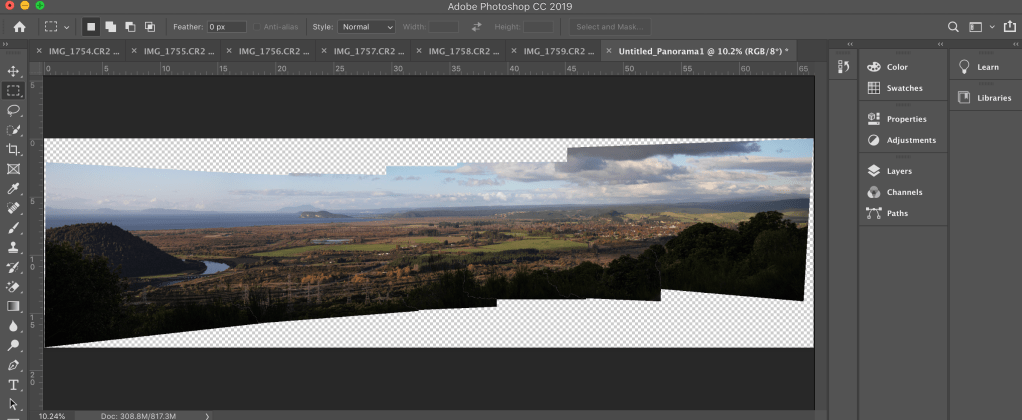
Editing your panorama:
- Go to Layer > Flatten Image
- Using crop, tighten the image to avoid white areas
- If there’s some white left, click on the Clone Stamp tool
- Hold down Option(alt) > then click on the space you want to clone
- Fill in any white space
Now you’ve got your final panorama! Save your image to create beautiful prints to frame or use for cover photos like I do on my website.



 Hannah Matt
One thought on “Making Panoramas in Photoshop”